Why phishing is worth understanding
A text says your parcel can't be delivered. An email says your bank account has been locked. A message from a "friend" asks you to click a link to see a photo of you. All three could be genuine, and all three are classic scam openers.
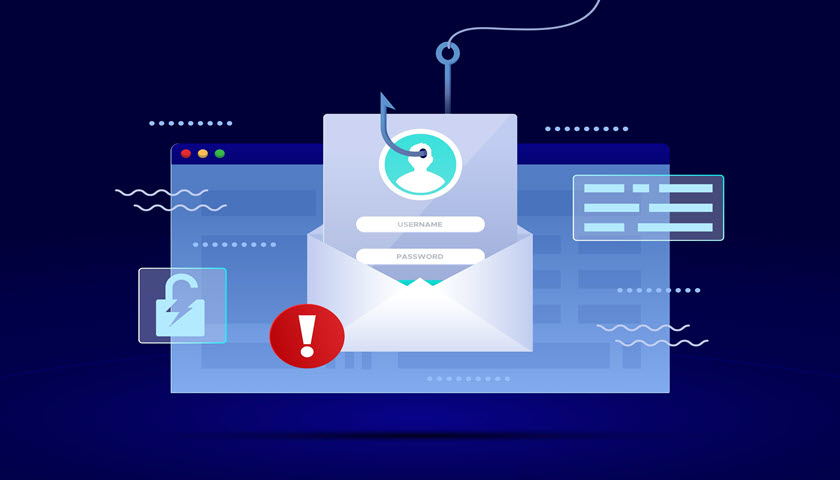
These are examples of phishing: messages that pretend to come from someone you trust, so you'll hand over passwords, card numbers or personal details, or install something harmful. The name is a play on "fishing", because scammers cast out bait and wait for someone to bite.
Phishing works not because people are foolish, but because the messages are designed to catch you when you're busy, distracted or worried. Anyone can be fooled on a bad day.
The good news is that almost every phishing message gives itself away somewhere. Once you know where to look, spotting them becomes a quick habit rather than a guessing game.
What phishing is (and its many forms)
Every phishing attempt has the same basic recipe: a disguise (pretending to be a bank, a delivery company, a government agency or someone you know), a hook (a problem, a prize or a request), and an action (click, log in, pay, reply or open a file).
What changes is how the message reaches you. Each method has picked up its own nickname:
| Name | How it arrives | Typical example |
|---|---|---|
| Email phishing | "Your account has been suspended. Verify your details here." | |
| Spear phishing | Email or message aimed at one specific person | A message using your name, job title or a real colleague's name. |
| Smishing | Text message (SMS) | "Your toll payment is overdue. Pay now to avoid a fine." |
| Vishing | Voice call | A caller claiming to be from your bank's fraud team. |
| Quishing | QR code | A sticker on a parking meter leading to a fake payment page. |
| Social media phishing | Direct messages, comments, ads | "Is this you in this video?" from a friend's hacked account. |
Don't worry about memorising the names. The warning signs are the same whichever way the message arrives.
Red flags in the message itself
Start with what the message says and how it makes you feel. Scammers rely on emotion to rush you past your common sense.
It's urgent or threatening
"Act within 24 hours", "final notice", "your account will be closed". Urgency is the single most common trick, because a panicked person doesn't stop to check. Genuine organisations do contact you about problems, but they rarely demand you fix them through a link right now.
It's unexpected
A delivery notice when you haven't ordered anything, a refund you didn't ask for, a password reset you didn't request. If you weren't expecting it, treat it with extra care.
It asks for something sensitive
Passwords, full card numbers, one-time codes, or remote access to your computer. Your bank already knows your details; it has no reason to ask you to type them into a link.
It's too good to be true
A prize from a competition you never entered, an investment with guaranteed returns, a designer item at 90% off. If an offer seems impossibly generous, it usually is.
It feels slightly "off"
A generic greeting like "Dear Customer", a friend writing in a way they never would, or a logo that looks a little blurry. Trust that nagging feeling and check before acting.
Myth buster: you may have heard that phishing emails are always full of spelling mistakes. Some still are, but scammers now use AI writing tools and copy real company emails, so many phishing messages are polished and error-free. Good grammar is no proof a message is genuine.
Checking who really sent it
The name you see on a message isn't necessarily who sent it. Here's how to look a little deeper on each type.
Email: look past the display name
Every email has a display name (the friendly name shown in your inbox) and an actual email address. Scammers can set the display name to anything they like. Click or tap the sender's name to reveal the full address.
From: Commonwealth Bank <security-alert@cba-verify-account.com>
      ^ display name         ^ the real address (not CommBank)
Look at the part after the @, called the domain. It should match the organisation's real website domain exactly. Watch for lookalikes such as paypa1.com (with the number one), micros0ft-support.com, or a real company name buried inside a longer domain.
Text messages: the "Unverified" label
Many businesses send texts that show a name, such as "AusPost", instead of a phone number. That name is called a sender ID. In Australia, from 1 July 2026, organisations must register their sender IDs, and texts using an unregistered sender ID now show the word "Unverified" in place of the name.
That's a useful extra warning sign, but it isn't a complete safety net. Scammers can still text you from an ordinary mobile number, so the content of the message still matters.
Phone calls: caller ID can be faked
Caller ID, the number or name shown when your phone rings, can be faked (this is called spoofing). A call that seems to come from your bank's real number might not. If a caller asks for codes, passwords or to move money "to keep it safe", hang up and call the organisation back on a number you find yourself.
Key rule: never use the contact details provided in a suspicious message. Find the phone number, website or app yourself, from the back of your card, a past bill or by typing the address you already know.
Checking links and attachments
The link or attachment is where the actual harm happens, so this is the most important check of all.
Hover or long-press before you click
On a computer, rest your mouse pointer over a link without clicking. The real address appears in the bottom corner of your browser or email program. On a phone, press and hold the link to see a preview. If the link text says www.mybank.com.au but the real address is something else entirely, it's a scam.
Be extra careful with shortened links
Shortened links, like bit.ly/3kQx7Zp, hide their real destination, so hovering only shows the short address. Paste the link into a link expander such as ExpandURL to reveal where it really leads, without visiting it. If you check links often, the ExpandURL browser extension saves a step.
Read the domain from right to left
The part of a web address that tells you who owns the site is the domain, just before the first single forward slash (/). Compare these two:
https://my.gov.au/login                  ← domain is my.gov.au (genuine)
https://my.gov.au.login-check.net/login  ← domain is login-check.net (fake)
The second one starts with "my.gov.au", but that's just decoration. The real owner is login-check.net. Australian government websites end in .gov.au.
The padlock doesn't mean safe
Older advice said to look for https:// and a padlock icon. These only mean the connection is encrypted (scrambled so others can't eavesdrop). Scam sites can get a padlock for free, and most do. It tells you nothing about whether the site is honest.
Treat attachments with suspicion
An unexpected attachment, especially an "invoice", "receipt" or "voicemail", can contain malware (software designed to harm your device or steal data). Be particularly wary of:
- Files that ask you to "enable editing" or "enable content" when opened.
- Compressed files, such as
.zip, from someone you don't know. - Web page files (
.htmlor.htm) that open a login screen. - Any attachment that asks you to sign in to view it.
If you weren't expecting the file, check with the sender through a different method before opening it.
Putting it together: a worked example
Let's practise on a made-up but realistic email. Read it first, and see how many warning signs you can spot.
From:    myGov <noreply@mygov-refunds.com>
Subject: You are eligible for a tax refund of $684.20

Dear Customer,

Our records show you are owed a refund. To receive your payment,
please confirm your bank details within 48 hours or the refund
will be cancelled.

  [ Claim my refund ]  → https://bit.ly/3Rfnd8x

Thank you,
myGov Services Team
Here's what gives it away:
- The sender's domain is
mygov-refunds.com. Real Australian government services use.gov.au. - "Dear Customer" is generic. Real services usually know your name.
- The money hook: an unexpected refund is designed to make you want to click.
- The deadline: "within 48 hours or the refund will be cancelled" creates pressure.
- It asks for bank details through a link, which a genuine service wouldn't do.
- The link is shortened, hiding where it goes. Expanding it would almost certainly reveal a fake site.
Notice there are no spelling mistakes at all. The giveaways are in the sender, the pressure and the request, not the grammar.
What to do: don't click. If you want to check whether you're really owed anything, log in to myGov yourself by typing my.gov.au into your browser or using the official app.
Habits that protect you, and what to do if you're caught
Everyday habits
- Go direct. Use your saved bookmarks or official apps for banking, myGov and shopping, rather than links in messages.
- Turn on multi-factor authentication. This means logging in with your password plus a second check, such as a code from an app on your phone. A stolen password alone then isn't enough.
- Never share one-time codes. A code sent to your phone is the key to your account. No genuine organisation will ask you to read it out.
- Use a password manager. It fills in passwords only on the real website, so it won't fill them in on a lookalike, which is a handy built-in warning.
- Keep devices updated. Updates fix security holes that malware relies on.
- Pause and ask someone. A quick "does this look right to you?" to a friend or family member breaks the scammer's sense of urgency.
If you think you've been caught
Act quickly, without embarrassment. Scammers are professionals, and fast action limits the damage.
- Stop engaging. Close the page, hang up, and don't reply.
- If you gave bank or card details, call your bank straight away using the number on the back of your card.
- If you gave a password, change it on the real website, plus anywhere you've reused it. Turn on multi-factor authentication.
- If you opened an attachment or installed something, disconnect from the internet and run a security scan.
- Report it. In Australia, report scams to Scamwatch and cybercrime to ReportCyber via cyber.gov.au. If your identity documents or details were taken, IDCARE offers free support.
Tip: most email programs have a "Report phishing" or "Report junk" button. Using it, rather than simply deleting the message, helps your email provider block the same scam for other people.
Quick reference glossary
| Term | Meaning |
|---|---|
| Phishing | Pretending to be someone trustworthy to trick people into giving away information or money. |
| Spear phishing | Phishing aimed at one particular person, using personal details to seem convincing. |
| Smishing | Phishing by text message. |
| Vishing | Phishing by voice call. |
| Quishing | Phishing using QR codes. |
| Display name | The friendly name shown on an email, which can be set to anything. |
| Domain | The main part of an email or web address that shows who owns it, e.g. commbank.com.au. |
| Sender ID | A business name shown instead of a phone number on a text message. |
| Spoofing | Faking a name, email address or phone number to look like someone else. |
| Malware | Software designed to harm a device or steal data. |
| Multi-factor authentication | Logging in with a password plus a second check, such as a code on your phone. |
Wrapping up
Phishing scams keep changing their costumes, from emails to texts, calls and QR codes, but the tricks underneath stay the same: a disguise, a hook and a push to act fast. Once you recognise that pattern, the scams become much easier to see through.
If you remember four things, make them these:
- Urgency, unexpected messages and requests for sensitive details are the biggest warning signs.
- Check the real sender address and the real link destination, not just what's displayed.
- Polished writing and a padlock icon don't prove a message or website is genuine.
- When in doubt, go direct: contact the organisation using details you find yourself.
A few seconds of doubt costs nothing, so take them every time.